

Sidebar read states
Read is light. Unread is bold. Blue means you were mentioned.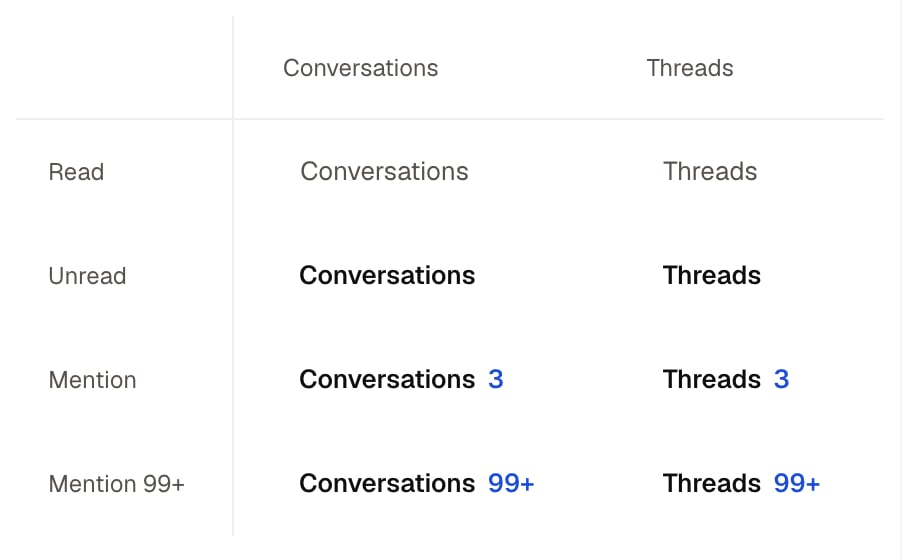
Read, unread and mention states in the Conversations and Threads sidebar tabs.
Open and organize conversations
Conversation menu
Change folders, notifications, members, archive, or leave.Right-click a conversation in the sidebar, or hover it and click its … button.
Mute or change notifications: Notifications > All new messages, Just mentions or Mute (DMs: All messages or Mute); Edit default settings opens Settings > Notifications.
Threads
Find threads you follow.Chat → Sidebar → Threads tab
You follow a thread automatically when you start it, reply to it or are mentioned in it.
Message yourself
Keep private notes and links.Press Cmd/Ctrl+K, type your name under People and pick it.
New DM
Start a DM or group DM.Press Cmd/Ctrl+Shift+K.
DM an agent: Cmd/Ctrl+K > Agents > pick it, or Message on its profile.
New channel
Make a public or private channel.Press Cmd/Ctrl+Option/Alt+K.
members who can create channels
After creating, the Add to #channel step offers Add people, Add agents or Send invites, or Skip for now.
Browse channels
Find public channels and join them.Sidebar Browse or create > Browse channels.
Conversation page
Read and send messages.Chat → Conversation
Open channel details: click the title or the members button.
Jump to latest: Cmd/Ctrl+Down
Channel details
Manage members, files, automations, and channel settings.Conversation → Header → Members button
Add people or agents: Members tab > Add members.
Thread panel
Reply to one message without splitting the main conversation.Hover a message > Reply in thread, click its reply count, or press T on a focused message.
Follow or unfollow: Thread actions > Turn on notifications / Turn off notifications.
Inbox
See messages that need your attention.Click Inbox in the left rail or press Cmd/Ctrl+Shift+A.
Archive an item to clear it; find it again under the Archived tab.
Next inbox item: J
Search
Find messages, people, channels, files, and transcripts.Web: Search in the left rail or Cmd/Ctrl+K > Search.
The bare / key no longer opens search.
Send and manage messages
Composer
Write, format, attach, mention, and send.Conversation → Composer
Markdown works for bold, italic, strikethrough, code, code blocks, quotes, lists and links. Headings are not supported.
Insert line break: Shift+Enter
Message actions
React, reply, forward, edit, copy, pin, or delete.Hover a message for the toolbar; More actions or right-click opens the full menu.
You can edit and delete your own messages; members with write access can delete their workspace agents’ messages.
Next message: Down
Forward a message
Send one message to another person, agent, or channel.Message → Forward
Work live
Jams
Start or join a live audio room.Click Start Jam in the conversation header, or press Option/Alt+Shift+J.
Choose recording before you start, in Open Jam settings.