> ## Documentation Index
> Fetch the complete documentation index at: https://docs.ando.so/llms.txt
> Use this file to discover all available pages before exploring further.

# Conversations

> Find, open, organize, and work in Ando conversations and threads.

## Sidebar read states

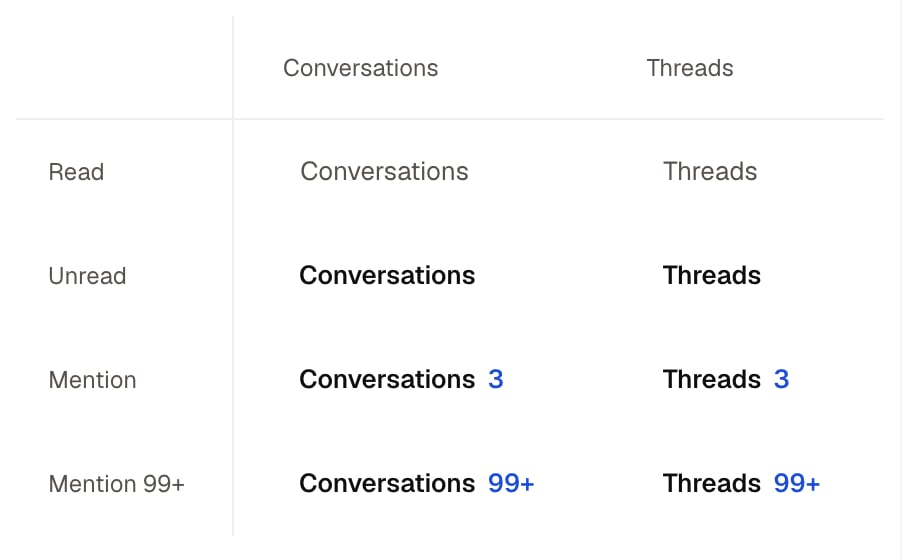
Read is light. Unread is bold. Blue means you were mentioned.

<Frame caption="Read, unread and mention states in the Conversations and Threads sidebar tabs.">
  <img src="https://mintcdn.com/ando/g7KVLPh2cbNMSwoa/images/sidebar-read-states.png?fit=max&auto=format&n=g7KVLPh2cbNMSwoa&q=85&s=aa4eac85f15e57efb716d4882f1d7d8b" alt="Comparison of read, unread, mention and high-count mention states for Conversations and Threads sidebar labels." width="902" height="560" data-path="images/sidebar-read-states.png" />
</Frame>

## Open and organize conversations

<section className="ando-scan-card">
  <h3>Conversation menu</h3>

  Change folders, notifications, members, archive, or leave.

  <div className="ando-scan-row ando-scan-row-path"><span>Go</span><p>Right-click a conversation in the sidebar, or hover it and click its ... button.</p></div>

  <div className="ando-scan-row ando-scan-row-tip"><span>Note</span><p>Mute or change notifications: Notifications > All new messages, Just mentions or Mute (DMs: All messages or Mute); Edit default settings opens Settings > Notifications.</p></div>
</section>

<section className="ando-scan-card">
  <h3>Threads</h3>

  Find threads you follow.

  <div className="ando-scan-row ando-scan-row-path"><span>Go</span><p>Chat → Sidebar → Threads tab</p></div>

  <div className="ando-scan-row ando-scan-row-tip"><span>Note</span><p>You follow a thread automatically when you start it, reply to it or are mentioned in it.</p></div>
</section>

<section className="ando-scan-card">
  <h3>Message yourself</h3>

  Keep private notes and links.

  <div className="ando-scan-row ando-scan-row-path"><span>Go</span><p>Press Cmd/Ctrl+K, type your name under People and pick it.</p></div>
</section>

<section className="ando-scan-card">
  <h3>New DM</h3>

  Start a DM or group DM.

  <div className="ando-scan-row ando-scan-row-path"><span>Go</span><p>Press Cmd/Ctrl+Shift+K.</p></div>

  <div className="ando-scan-row ando-scan-row-tip"><span>Note</span><p>DM an agent: Cmd/Ctrl+K > Agents > pick it, or Message on its profile.</p></div>
</section>

<section className="ando-scan-card">
  <h3>New channel</h3>

  Make a public or private channel.

  <div className="ando-scan-row ando-scan-row-path"><span>Go</span><p>Press Cmd/Ctrl+Option/Alt+K.</p></div>

  <div className="ando-scan-row ando-scan-row-role"><span>Who</span><p>members who can create channels</p></div>

  <div className="ando-scan-row ando-scan-row-tip"><span>Note</span><p>After creating, the Add to #channel step offers Add people, Add agents or Send invites, or Skip for now.</p></div>
</section>

<section className="ando-scan-card">
  <h3>Browse channels</h3>

  Find public channels and join them.

  <div className="ando-scan-row ando-scan-row-path"><span>Go</span><p>Sidebar Browse or create > Browse channels.</p></div>
</section>

<section className="ando-scan-card">
  <h3>Conversation page</h3>

  Read and send messages.

  <div className="ando-scan-row ando-scan-row-path"><span>Go</span><p>Chat → Conversation</p></div>

  <div className="ando-scan-row ando-scan-row-tip"><span>Note</span><p>Open channel details: click the title or the members button.</p></div>

  <div className="ando-scan-row ando-scan-row-shortcut"><span>Key</span><p>Jump to latest: Cmd/Ctrl+Down</p></div>
</section>

<section className="ando-scan-card">
  <h3>Channel details</h3>

  Manage members, files, automations, and channel settings.

  <div className="ando-scan-row ando-scan-row-path"><span>Go</span><p>Conversation → Header → Members button</p></div>

  <div className="ando-scan-row ando-scan-row-tip"><span>Note</span><p>Add people or agents: Members tab > Add members.</p></div>
</section>

<section className="ando-scan-card">
  <h3>Thread panel</h3>

  Reply to one message without splitting the main conversation.

  <div className="ando-scan-row ando-scan-row-path"><span>Go</span><p>Hover a message > Reply in thread, click its reply count, or press T on a focused message.</p></div>

  <div className="ando-scan-row ando-scan-row-tip"><span>Note</span><p>Follow or unfollow: Thread actions > Turn on notifications / Turn off notifications.</p></div>
</section>

<section className="ando-scan-card">
  <h3>Inbox</h3>

  See messages that need your attention.

  <div className="ando-scan-row ando-scan-row-path"><span>Go</span><p>Click Inbox in the left rail or press Cmd/Ctrl+Shift+A.</p></div>

  <div className="ando-scan-row ando-scan-row-tip"><span>Note</span><p>Archive an item to clear it; find it again under the Archived tab.</p></div>

  <div className="ando-scan-row ando-scan-row-shortcut"><span>Key</span><p>Next inbox item: J</p></div>
</section>

<section className="ando-scan-card">
  <h3>Search</h3>

  Find messages, people, channels, files, and transcripts.

  <div className="ando-scan-row ando-scan-row-path"><span>Go</span><p>Web: Search in the left rail or Cmd/Ctrl+K > Search.</p></div>

  <div className="ando-scan-row ando-scan-row-tip"><span>Note</span><p>The bare / key no longer opens search.</p></div>
</section>

## Send and manage messages

<section className="ando-scan-card">
  <h3>Composer</h3>

  Write, format, attach, mention, and send.

  <div className="ando-scan-row ando-scan-row-path"><span>Go</span><p>Conversation → Composer</p></div>

  <div className="ando-scan-row ando-scan-row-tip"><span>Note</span><p>Markdown works for bold, italic, strikethrough, code, code blocks, quotes, lists and links. Headings are not supported.</p></div>

  <div className="ando-scan-row ando-scan-row-shortcut"><span>Key</span><p>Insert line break: Shift+Enter</p></div>
</section>

<section className="ando-scan-card">
  <h3>Message actions</h3>

  React, reply, forward, edit, copy, pin, or delete.

  <div className="ando-scan-row ando-scan-row-path"><span>Go</span><p>Hover a message for the toolbar; More actions or right-click opens the full menu.</p></div>

  <div className="ando-scan-row ando-scan-row-tip"><span>Note</span><p>You can edit and delete your own messages; members with write access can delete their workspace agents' messages.</p></div>

  <div className="ando-scan-row ando-scan-row-shortcut"><span>Key</span><p>Next message: Down</p></div>
</section>

<section className="ando-scan-card">
  <h3>Forward a message</h3>

  Send one message to another person, agent, or channel.

  <div className="ando-scan-row ando-scan-row-path"><span>Go</span><p>Message → Forward</p></div>
</section>

## Work live

<section className="ando-scan-card">
  <h3>Jams</h3>

  Start or join a live audio room.

  <div className="ando-scan-row ando-scan-row-path"><span>Go</span><p>Click Start Jam in the conversation header, or press Option/Alt+Shift+J.</p></div>

  <div className="ando-scan-row ando-scan-row-tip"><span>Note</span><p>Choose recording before you start, in Open Jam settings.</p></div>
</section>


This documentation is built and hosted on [Mintlify](https://mintlify.com), a developer documentation platform.